
SAML metadata is an XML file that securely connects your identity server and cloud apps by sharing login endpoints and security keys. Setting this up right makes logins automatic, stops errors, and keeps your data safe. Read on to learn how to set it up and fix issues.
Weak login setups and sloppy credentials remain a top backdoor for hackers. When identity servers and cloud apps refuse to talk, IT teams waste hours hunting for a single typo or an expired key.
The secret to keeping these communication channels secure and error-free lies in properly managing your SAML metadata.
So let’s learn how these configuration files work and the core XML components required for secure communication
Let’s start by looking at how these systems connect within standard architecture.
What is a SAML Architecture?
SAML (Security Assertion Markup Language) architecture relies on a trusted partnership between two distinct entities on a network:
- The Identity Provider (IdP): The central server that stores user accounts, checks passwords, and issues verified login proofs.
- The Service Provider (SP): The external web application or cloud tool that the user wants to open.
Before these systems share data, they must verify each other. Grounded in official OASIS technical standards, metadata acts as a digital contract that links them together.
This saves developers from writing custom code for every new app. Security groups warn that weak login setups are a massive risk, so following these standards keeps company systems safe.
What Are the Key Components of SAML Metadata?
A metadata file is an XML document filled with configuration tags. If you open one up, you will find three core pieces that keep the connection safe and working:
1. EntityID:
This is the unique name tag (usually written as a secure web address) that identifies your system. If the ID on your cloud app does not match the login server down to the exact letter, the connection fails instantly.
2. Endpoint URLs:
These are the exact web addresses where login data travels. For example, a Service Provider file must include an AssertionConsumerService (ACS) URL. Think of this as the secure drop-off box where the identity server delivers the user’s entry pass.
3. KeyDescriptor (Public Security Keys):
These are digital certificates used to sign files and protect user data. They prove that the configuration file came from a real IT admin, not an attacker trying to trick your network.
How Does SAML Metadata Work?
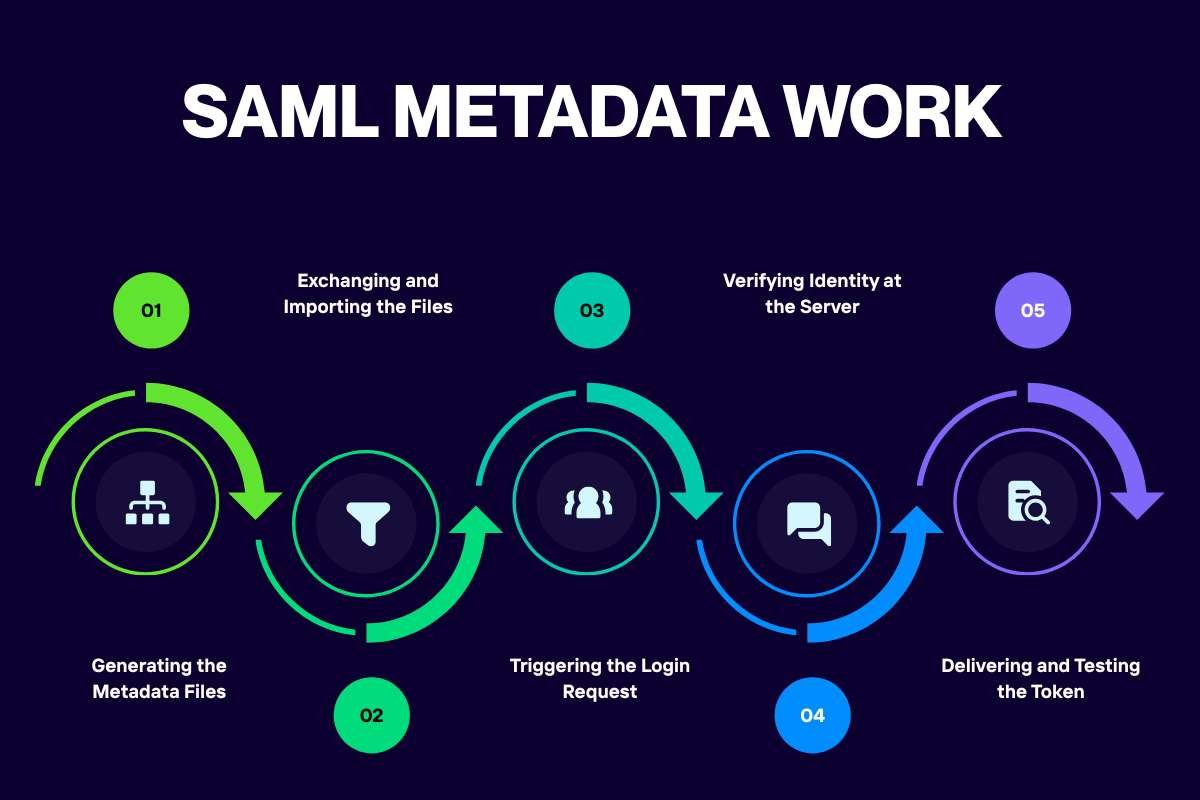
Metadata works by acting as a shared digital blueprint. It gives two different systems, your identity server and your cloud app, the exact web addresses and security keys they need to talk safely without manual typing.
Step 1: Generating the Metadata Files
Before systems can interact, each application creates its own XML configuration document:
The Identity Provider (IdP):
Builds a file listing its login URL, logout URL, and its public signing certificate.
The Service Provider (SP):
Builds a file listing its unique name (EntityID) and the exact web address where it expects login tokens to be delivered (known as the Assertion Consumer Service URL).
Step 2: Exchanging and Importing the Files
Systems cannot guess or discover each other automatically. An IT admin must connect them:
- The admin downloads the IdP metadata file and uploads it into the cloud app dashboard.
- The admin takes the app’s metadata file and uploads it to the identity server. Once uploaded, both platforms store these rules in memory. They now know each other’s digital signatures and network locations by heart.
Step 3: Triggering the Login Request
When a worker opens the cloud app, the app checks its stored metadata to find where to send the user. Instead of asking for a password, the app creates a login request and redirects the user’s browser to the exact login page URL specified in the metadata.
Step 4: Verifying Identity at the Server
The user arrives at the IdP login screen and enters their company credentials. The identity server checks its user database, confirms the login is valid, and builds a signed login proof, known as a SAML assertion, containing the user’s profile details.
Step 5: Delivering and Testing the Token
The identity server checks its stored metadata to find the app’s return URL. It sends the login token back to that exact web address via the user’s browser.
The cloud app catches the token and checks the digital signature against the public security key it saved during the initial setup. Because the key matches, the app knows the token is safe and authentic. It opens the dashboard and lets the worker in instantly.
What Are the Primary Metadata Types?
When configuring enterprise SAML single sign-on, you do not use a single, one-size-fits-all file. Instead, system administrators work with two distinct configuration files depending on the system’s role in the network:
1. Identity Provider (IdP) Metadata
This file is generated by your central identity server. It acts as the authority on who you are. It tells every cloud app on your network:
- Where users should go to log in and log out.
- The unique name or issuer ID of the identity server.
- The public security certificates used to sign and verify login tokens so apps know the data is real.
2. Service Provider (SP) Metadata
This file is generated by the individual software app or cloud tool you want to connect (such as Salesforce, Slack, or GitHub). It acts as the destination guide. It tells the identity server:
- The unique identifier (EntityID) of the app.
- The exact web address where the identity server must drop completed login tokens.
- What kind of user identity format (NameID) the app requires.
Both files must mirror each other’s security rules. For example, if your identity server requires signed logout requests, the app’s metadata file must explicitly state that it supports or requires signing. If these rules clash, the connection fails.
Here is a quick snapshot comparing the two metadata types:
| Metadata Type | Target System | Core Purpose |
| IdP Metadata | Identity Provider | Declares login endpoints, issuer IDs, and public keys used to authenticate users. |
| SP Metadata | Service Provider | Defines where response tokens must be delivered, how assertions are requested, and what name formats are required. |
What Does a SAML Metadata XML Structure Look Like?
Looking at raw code helps engineers spot configuration errors before pushing updates live. A valid metadata file wraps configuration rules inside specific root tags.
For example, a file often starts with an <EntityDescriptor> tag followed by attribute declarations. Inside that container, you will find specific sub-tags:
- <IDPSSODescriptor> or <SPSSODescriptor> to declare the role of the system.
- <KeyDescriptor use=”signing”> to hold the public security certificate.
- <SingleSignOnService> to define the network location for login handshakes.
When parsing these files, systems look closely at how they format permissions and user attributes, ensuring that configuration rules dictate runtime behavior accurately.
How Can You Configure SAML Metadata?
You have two main ways to set up and link your metadata files, depending on how much manual maintenance your IT team wants to handle.
1. Static File Uploads
Static file uploads work well for smaller setups or apps that rarely change. You simply download the XML file from your identity server dashboard and upload it directly into your cloud app.
The catch is that security certificates expire over time. When your keys change, you have to log in and upload a new file by hand. If you forget, employee logins will break instantly.
2. Dynamic Federation URLs
Dynamic federation URLs are much better for busy enterprise environments. Instead of downloading a static file, you point your cloud app to a secure web link hosted by your identity server.
The app automatically checks this link on a regular schedule, grabbing new security keys and address updates on its own to stop sudden login lockouts when certificates roll over.
SAML Metadata vs. Manual Configuration
Across any secure SAML deployment, cloud apps typically offer two setup paths: uploading an XML metadata file or filling out configuration fields by hand (typing in entity IDs, binding URLs, and pasting public certificate strings).
Manual entry invites human error. A single mistyped character in a long URL or an accidental space inside a security certificate block will break the login handshake instantly. Metadata files automate this entire process, ensuring that long strings of cryptographic text and endpoint URLs copy over with zero errors.
| Configuration Method | Setup Speed | Error Risk | Key Maintenance Effort |
| Metadata File / URL | Fast (Seconds) | Very Low | Automated or single-file re-import |
| Manual Field Entry | Slow (Minutes) | High | Manual copy-paste for every key rotation |
How Can You Troubleshoot Common SAML Metadata Errors?
Most login bugs affecting enterprise SAML authentication happen because of tiny typos tucked inside metadata files. Spotting these fast saves your IT team hours of headaches and user support tickets.
The first major trap is an EntityID mismatch. Your unique identifier string must match on both ends down to the exact character. If your app looks for [https://auth.company.com](https://auth.company.com) but your metadata file ends with a stray slash like [https://auth.company.com/](https://auth.company.com/), the server will reject the connection instantly.
The second major trap is a certificate rotation failure. Public security keys expire over time for safety. When your identity server rolls out a new signing key, your cloud app must also get the update. If the app’s metadata file still holds the old key, it won’t trust incoming login tokens, locking workers out until you push the fix.
What Are the Best SAML Metadata Tools?

Reading XML code by hand is a headache. The right tools make it simple to check files, test links, and verify security keys before you go live.
1. XML Validators
XML validators are a great first line of defense. These online schema checkers or code editor plugins make sure your XML file follows official OASIS rules. They catch missing tags, bad syntax, or broken namespaces before your server ever sees them.
2. Browser Extensions
Browser extensions like SAML-tracer tools are lifesavers during active logins. They capture network traffic right inside your browser, allowing engineers to view raw metadata parameters, check assertion payloads, and track down exactly where a login handshake falls apart.
3. Command-Line Parsers
Command-line parsers offer deep inspection capabilities. Tools like xmlstarlet or custom scripts let sysadmins query specific nodes, pull expiration dates, or check entity IDs directly from the terminal.
Using these tools cuts down trial-and-error time and keeps your single sign-on systems running smoothly.
Conclusion:
Proper SAML metadata setup keeps corporate apps secure and workers logging in smoothly. We covered core XML components, differences between IdP and SP files, and the benefits of dynamic URLs.
Using validation tools and browser extensions also helps IT teams fix errors and stop downtime. Managing these files correctly prevents security risks before they start.
Frequently Asked Questions
1. What is the difference between IdP and SP metadata?
IdP metadata comes from the identity server and contains login endpoints and signing keys, while SP metadata comes from the target app and tells the server where to send verified tokens.
2. Why do SAML entityID mismatches cause login failures?
An entityID is a unique string identifier. If the receiving app expects one exact name and gets a slightly different string, it rejects the file because it cannot verify trust.
3. How often should enterprise security teams rotate SAML signing certificates?
Most security frameworks recommend rotating public certificates annually or immediately after any suspected security event, ensuring metadata files update across both systems before old keys expire.
4. Can SAML metadata be updated automatically using dynamic federation URLs?
Yes. Instead of uploading static XML files by hand, systems can point to a live URL that fetches updated security certificates and endpoint changes automatically.